Image to Video AI
One-tap image animation. Upload a still image and AI turns it into a compelling video — no editing, no timeline, just a photo and a sentence.
Drop your photo here
or · JPG or PNG
Sign in to create
One click with Google — no password needed. New here? Your Google account creates one automatically.
Private by default · No installation · Works on mobile
 SAMPLE VIDEO
Silent preview
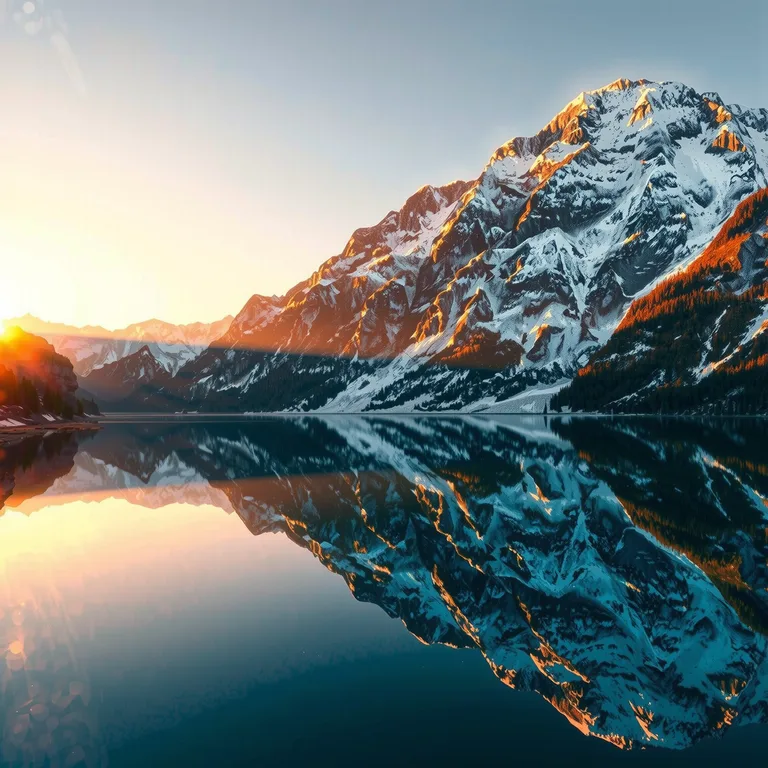
From a still photo to a living scene: ripples, drifting mist, moving clouds — made with Wan 2.2 Image to Video.
CreateOne Tap Image Animation
The photo on the left is the exact starting image. The video on the right is what Kanakaw made from it — same lake, same light, now moving.
Prompt: “Gentle ripples spread across the lake, mist drifts over the water, clouds move slowly.”
Turn Any Photo into a Video
No matter the subject — portrait, landscape, product shot or artwork — the AI animates it into a full-fledged video in a few clicks.
Any Photo Works
Portraits, landscapes, product shots, artwork. Upload one image and describe the motion you want to see.
Professional Video Quality
High-definition clips that look great on phones and big screens alike. Motion stays smooth and the original photo stays recognizable.
Models That Fit the Shot
Wan 2.2 and LTX-2 video engines power the generator behind the scenes.
Models available in the generator: Wan 2.2 Image to Video · LTX-2 Image to Video
How to Use the Image-to-Video Generator
Anyone can create videos with just a few steps.
Upload Your Image
Start by uploading one image — a product shot, artwork, event photo, or anything that can benefit from animation.
Describe the Motion
Tell the AI what should move: ripples, falling petals, drifting clouds, a slow camera push-in.
AI Animation
The AI detects the key elements in your image and applies dynamic motion — zooms, pans and natural movement.
Export and Share
Download the video or share it directly to social media in the format you need.
Which Photos Animate Best with Image to Video AI?
Photo to video AI does not invent a new scene — it brings motion to the one you already have. The photo you pick decides most of the result before you type a single word.
Some things move beautifully. Water is the easiest win: ripples on a lake, waves rolling ashore, a waterfall, rain on a window. The model understands water, so a small amount of motion reads as real and the rest of the frame stays exactly as photographed. Hair and fabric behave the same way — a strand of hair lifting in the breeze, a dress hem or a curtain swaying, a flag rippling. Clouds, smoke, steam, fog and falling snow are also strong, because their motion is slow and forgiving: the eye accepts a drifting cloud far more readily than a fast-moving hand.
Natural texture is your friend. Foliage, grass, sand, firelight and city lights all animate well, because they are made of many small moving parts and no single detail has to be perfect. A busy street scene works for the same reason: people strolling, a cyclist passing, leaves rustling overhead — the motion is distributed across the frame, so nothing looks wrong if one pedestrian moves a little oddly. Landscapes are the safest starting point of all. A mountain lake, a beach at sunset, a forest path: the composition is already good, and a slow camera drift plus one moving element is enough to make the clip feel alive.
Portraits can be striking, but they are less forgiving. A gentle blink, a faint smile, hair moving in the wind — small, slow motion — looks natural. Asking a portrait to turn its head, speak, or laugh usually does not. Faces are the one place where viewers notice every error, so keep portrait motion subtle and keep the face large and well-lit in the frame. The same caution applies to hands: fingers and hands are hard for video models, so avoid prompts that ask hands to wave, point or pick something up.
Some photos are poor starting points, and no prompt fixes them. Text-heavy images — posters, screenshots, memes, slides — animate badly, because the model tries to move letters that should stay still and the text warps. Logos and flat graphic designs have the same problem: there is nothing in the image that moves in real life, so any motion looks wrong. Very blurry or very low-resolution photos also struggle, because the model has to guess at detail that is not there; a sharp, well-lit original always gives a cleaner clip. And a photo where the subject is cropped tight against every edge leaves the model no room to move — a little breathing space around the subject makes the motion read far better.
Before you upload, do three quick checks. First, is the photo sharp and well-lit, with the subject clearly separated from the background? Second, does something in the frame already move in real life — water, hair, cloth, clouds, smoke, a crowd? Third, is there one clear subject, or is the frame so busy that the eye does not know where to look? If you can answer yes to the first two and the third is a single subject, the photo will almost certainly animate well. If the photo fails all three, pick another one: the best motion prompt in the world cannot rescue a bad starting image.
How to Write a Motion Prompt for Photo Animation
A good motion prompt is short, specific and honest about what can actually move. Four parts, one or two sentences — that is all it takes.
Use this formula: name the subject, say what moves and how, add the camera movement, and set the pace. “The subject” is the one thing in the photo that should come alive. “What moves and how” is the action itself — ripples, a slow blink, petals drifting down — described as you would describe it to a person. “Camera movement” is the optional push-in, drift or tilt that makes a still frame feel like a shot rather than a slideshow. “Pace” is a word or two — gently, slowly, softly — that keeps the motion calm. Fast, violent motion is where AI photo animation breaks down most often, so slow is almost always the better choice.
Keep the prompt to one idea. A prompt that asks for ripples, falling petals, drifting clouds, a walking dog and a camera zoom is asking five things at once, and the model will do none of them well. Pick the single strongest motion in the scene and let the rest of the photo stay still. Stillness is not a flaw in a photo animation — it is what makes the moving part stand out. The lake stays glassy while the mist moves; the portrait stays composed while the hair lifts. Contrast between motion and stillness is what makes a five-second clip feel like a video instead of a wobble.
Describe motion, not outcomes. “She looks happy” is not a motion; “she blinks slowly and gives a small smile” is. “A lively street” is not a motion; “people stroll slowly along the street, a cyclist passes in the background” is. The model animates what you describe, so write verbs: drifts, sways, ripples, flickers, rises, falls, passes. And write what is already in the photo. If there is no dog in the picture, do not ask for one — image to video AI animates the photo you uploaded, it does not add new subjects to it.
Four prompts that work, ready to adapt to your own photos:
Portrait in the wind: “Her hair lifts gently in the breeze, a few loose strands drift across her cheek, she blinks slowly and gives a small smile, soft window light, camera holds still.” One moving element, one tiny facial motion, no camera movement at all.
Product on a table: “The perfume bottle catches a soft glint as the camera drifts slowly to the right, the silk fabric behind it ripples gently, light sparkles on the glass.” The product itself barely moves — the camera and the light do the work, which is exactly how product clips are shot.
An old family photo: “She smiles faintly, her head tilts a fraction, the lace curtain behind her sways in a light breeze, warm afternoon light, camera holds still.” Old photos animate best with the smallest possible motion, and the result feels like a memory rather than a trick.
A city street at dusk: “Neon signs flicker softly, light trails streak past as cars drive by, steam rises from a street vent, slow upward camera tilt.” Three slow motions plus a gentle tilt — busy enough to feel alive, calm enough to stay believable.
If a result comes out wrong, change one thing, not everything. If the motion was too strong, add “gently” or “slowly”. If the wrong thing moved, name the subject more precisely. If the camera felt seasick, remove the camera direction entirely and let the scene move instead. Most photo animation improves dramatically on the second try, because the first try tells you exactly which word the model misunderstood.
Portrait, Landscape or Square? Picking the Right Shape
Image to video AI on Kanakaw offers five aspect ratios — 16:9, 9:16, 1:1, 4:3 and 3:4. The right one is decided by where the video will be watched, not by the photo itself.
Vertical 9:16 is the shape of the phone screen. If the clip is going to TikTok, Instagram Reels, YouTube Shorts or a Story, 9:16 is the correct choice: it fills the screen, there are no black bars, and the viewer never has to rotate their phone. It suits portraits best — a person standing, a building, a waterfall, a street scene shot vertically. If your starting photo is already a portrait, 9:16 keeps its shape and the subject stays large in the frame.
Wide 16:9 is the shape of YouTube, a website hero banner and a television. It suits landscapes, city views, beaches and any photo that was shot horizontally. A wide lake, a mountain range, a skyline — these need horizontal room, and 16:9 gives it to them. If you are animating a photo to sit at the top of a landing page or to open a YouTube video, this is the ratio to pick.
Square 1:1 is the shape of the classic social feed. It works well for product shots and food photos, for anything that will be scrolled past in a grid, and for profile-style clips where the subject sits in the middle of the frame. A square clip never looks wrong, which is also its weakness: it never looks dramatic either. Use it when the video has to live in several places at once and you want one safe shape for all of them.
The two classic photo ratios, 4:3 and 3:4, exist for photos that were taken that way. Old family photographs, scanned prints, portraits shot on a phone held vertically — these are usually 4:3 or 3:4 already, and matching the ratio keeps the composition the photographer intended instead of forcing it into a wider or taller box. If you are animating an old photo, start with the ratio closest to the original print: the clip will look like the photo come to life, not like the photo squeezed into a modern frame.
One practical rule covers all of it: decide where the video will be seen before you generate it. A clip made for TikTok and then posted to YouTube will carry black bars or a crop; a clip made for a website hero and then posted to Stories will lose its edges. Picking the ratio first takes ten seconds and saves a regeneration. And when in doubt, generate the version for the place where the most people will see it — you can always make a second clip in another shape from the same photo.
What to Use Photo to Video AI For — and Its Honest Limits
AI photo animation is at its best when it does one small thing well: a still image that moves just enough to catch the eye. Here is where it earns its keep, and where it does not.
Old photos. This is the use case people care about most. A scanned print of a grandparent, a childhood birthday, a wedding from decades ago — a faint smile, a slight head tilt, a curtain swaying behind them — turns a flat memory into something that feels present. Keep the motion minimal and the clip short; five seconds is enough. The photo keeps its original look, including black and white, so the result feels like the photograph itself moving, not like a modern re-shoot.
Product photos. A product shot that sits still on a shop page is easy to scroll past. The same shot with silk rippling behind it, light glinting across the glass, or the camera drifting slowly sideways holds attention for the full five seconds — which is often the whole difference between a view and a click. Product animation works best when the product barely moves and the light and camera do the work: it reads as a professional product clip, not as a gimmick.
Portraits and landscapes. A portrait with hair lifting in the wind makes a striking profile video or avatar clip. A landscape — a lake, a beach, a forest path — makes a calm background loop for a website, a presentation, or a social post. Landscapes are the most reliable subject of all: there is no face to get wrong, and water, clouds and foliage are exactly the things this kind of AI animates best.
Social posts. A moving image stops the scroll in a way a still photo does not, and a five-second clip is the native length of a feed. Animating one strong photo per post — the best shot from a trip, a shoot, or a product launch — gives you video content without a video shoot. Generate in 9:16 for Reels, Shorts and TikTok, or 1:1 for the grid, and the clip is ready to post as it comes out of the generator.
Now the limits, stated plainly. Each video starts from exactly one photo: you cannot upload two images and morph between them, and you cannot add a second photo halfway through. The videos are silent — there is no music, no voice, no sound effects — so if you want audio, add it afterwards in any video editor. Clips come in 5, 10 or 15 seconds; five seconds suits a single gentle motion, while ten or fifteen suit slow camera moves and scenes where several things drift at once. And image to video is a members-only feature with no free trial on Kanakaw: you sign in with Google, buy credits once, and each clip is charged per generation. At 480p a clip costs 357 credits for 5 seconds, 713 for 10 seconds and 1,070 for 15 seconds. At 720p the same lengths cost 713, 1,426 and 2,139 credits, and at 1080p they cost 1,426, 2,851 and 4,277 credits. Longer and sharper costs more, so a 5-second 720p clip is the sensible default for a first try — it is where quality and price meet.
One last note on rights: videos you generate are yours to use, including commercially, subject to Kanakaw's Terms of Service. The same rule applies in reverse — only animate photos you have the right to use. A photo you took yourself, a product shot from your own shop, a family print from your own album: all fine. Someone else's photo, a celebrity portrait, or a stock image you have not licensed: do not animate it.
Frequently Asked Questions
What kinds of images can I animate?
Almost any photo works: portraits, landscapes, product shots or artwork. Clear, well-lit images with a clear subject animate best.
How long does it take to generate a video?
Most 5-second clips finish in under a minute. You can watch live progress in the generator while you wait.
Can I control how the image moves?
Yes. Describe the motion in the prompt — for example ripples on water, petals falling, or a slow camera push-in — and the model follows it.
Can I upload more than one image?
Image to Video works from a single starting image. To combine images, generate each clip separately and join them in any video editor.
Can I animate an old or black-and-white photo?
Yes. A scanned print works the same way as a digital photo — upload the scan, describe a small, slow motion, and the clip keeps the photo's original look, including black and white. Scan at the highest resolution you can and crop out the scanner bed first; a faint smile or a slight head tilt is the right amount of motion for an old portrait, and five seconds is usually enough.
Will my video look exactly like my photo?
The first frame of the clip is your photo, and its composition, colours and subjects stay as they are. The motion is generated: water ripples, hair lifts, clouds drift, the camera moves slowly. Small details can shift slightly during the motion, especially faces and hands, so keep the movement subtle — a blink, a breeze, a slow drift — for the most faithful result.
Which aspect ratio should I pick for social media?
Use 9:16 vertical for TikTok, Instagram Reels, YouTube Shorts and Stories, where the video fills the phone screen. Use 1:1 square for the classic feed grid, and 16:9 wide for YouTube videos and website banners. If your starting photo is a portrait, 9:16 or 3:4 keeps its shape; if it is a wide landscape, 16:9 fits it naturally.
How many credits does an image-to-video clip cost?
It depends on resolution and length. At 480p a clip costs 357 credits for 5 seconds, 713 for 10 seconds and 1,070 for 15 seconds. At 720p the same lengths cost 713, 1,426 and 2,139 credits, and at 1080p they cost 1,426, 2,851 and 4,277 credits. Image to video is a members-only feature and there is no free trial on Kanakaw, so a 5-second 720p clip is the sensible first try.
What file types and sizes can I upload?
You can upload one photo per video in JPG, PNG or WebP format, up to 10 MB. Sharp, well-lit originals give the cleanest results — a blurry or heavily compressed photo forces the model to guess at missing detail. If your file is larger than 10 MB, export it at a slightly lower quality or resize it before uploading.
Turn Your Images into Stunning Videos with AI!
Your next clip starts from a photo you already have.
Get Started Now